


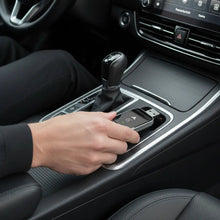
One USB port, a wireless CarPlay adapter and a phone that needs charging. Adding a hub looks like the obvious answer. Unfortunately, a car’s smartphone socket is not necessarily as flexible as the USB connection on your laptop.
A USB hub may work with some vehicle and adapter combinations, but you should not assume it will. Connect the wireless CarPlay adapter directly to the car’s working CarPlay data port first. A simple charging splitter is not a substitute for a supported data hub, and extra power alone cannot make an incompatible connection work.
The short answer: direct connection first
A wireless adapter still needs a wired connection to the car. The USB socket carries the adapter’s power and the data exchanged with the infotainment system. Adding another device between them changes the setup, even though your iPhone is connecting wirelessly.
If you are choosing the Homniva Wireless CarPlay Adapter, establish compatibility with working wired Apple CarPlay first. Then test the adapter directly. Do not purchase a hub on the assumption that it will expand the car’s supported connections.
| Connection arrangement | Assessment | Reason |
|---|---|---|
| Adapter directly in the working CarPlay data port | ✅ Recommended baseline | Removes an extra accessory from the connection path. |
| Ordinary USB data hub | ⚠️ Compatibility varies | The infotainment system must support that arrangement, not just the hub. |
| Charging-only splitter | ❌ Not a CarPlay data solution | Extra charging sockets do not create another supported data connection. |
| Externally powered USB hub | ⚠️ Not a guaranteed fix | Additional power does not resolve unsupported data communication. |
| Adapter in the data port, phone on a separate charger | ✅ Practical alternative | Keeps charging separate from the adapter’s connection. |
USB hub, splitter and converter: what is the difference?
A USB hub shares a host connection
A data hub allows a compatible host to communicate with connected devices. That is familiar on computers, but a vehicle’s infotainment system may accept only particular devices or connection layouts. A hub working on your laptop does not prove it will work in your car.
A splitter may be designed only for charging
The word “splitter” is used loosely in accessory listings. Some products divide power; others include data on only one branch. Read the actual specification rather than counting the sockets. A passive cable should not be treated as a way to create two independent CarPlay data connections.
A USB-A to USB-C converter changes the connector
A connector converter is not a multi-port hub. Even so, it must support the required data connection, and the car’s port must support wired CarPlay. A plug fitting neatly is only the beginning of the compatibility check.
Why a hub can cause problems
There are several possible reasons, and they should not all be labelled “not enough power”. The car may not support the hub, one socket may be charging-only, the cable may not carry data, or a loose connection may interrupt communication. Sharing available power can also become relevant when other devices are attached.
This matters because a powered hub is sometimes presented as a universal cure for dropouts. It is not. If the infotainment system cannot communicate with the adapter through the hub, increasing the power supply will not change that.
How to test your setup, step by step
- Park safely. Carry out connection tests before driving.
- Confirm wired CarPlay. Connect the iPhone directly with a known-good data cable. If CarPlay does not launch, resolve the port, cable or vehicle compatibility first.
- Test the adapter directly. Use the same working data port and follow the adapter’s pairing instructions.
- Establish a stable baseline. Check maps, audio and reconnection before introducing other accessories.
- Check both manufacturers’ guidance. If the vehicle or adapter instructions exclude hubs, keep the direct setup.
- Only test a supported hub arrangement. Start with the adapter alone on the hub. Add another device only after checking the first connection.
- Return to direct connection if problems appear. Compare like for like rather than changing several settings at once.
If you cannot get the direct setup working, our wireless CarPlay connection guide is a better next step than buying more USB accessories.
Better ways to charge your iPhone
The simplest arrangement is usually to leave the adapter in the CarPlay data socket and charge the phone elsewhere. That might mean a separate charging port, a suitable charger in the vehicle’s accessory socket, or a compatible wireless charging pad.
Check the charger’s instructions and your phone’s requirements. Wireless charging and navigation can generate heat, so avoid covering the phone or leaving it in direct sunlight. For the charging question in more detail, see does wireless CarPlay work while charging?
| Your aim | What to try first |
|---|---|
| Charge the iPhone during CarPlay | A separate suitable charging source. |
| Power a dashcam or another accessory | A dedicated supply appropriate to that device. |
| Connect two phones | Check the infotainment system’s phone selection options; a hub does not guarantee two simultaneous CarPlay sessions. |
| Make the USB plug fit | Check connector and data requirements before choosing a converter. |
Troubleshooting a hub-related problem
The adapter lights up, but CarPlay never opens
Power is reaching the adapter, but that does not confirm a usable data connection. Remove the hub and try the adapter directly in the tested CarPlay socket. If direct connection works, focus on the hub arrangement rather than repeatedly resetting the phone.
CarPlay stops when I plug in another device
Disconnect the added device and repeat the test. Shared power, unsupported device handling or the hub itself may be involved. Use separate supplies where possible; do not assume an externally powered hub is automatically approved for your vehicle.
It still disconnects without the hub
The hub is no longer the only suspect. Check connector seating, the adapter instructions, phone pairing and the infotainment system. Restart while parked and make one change at a time.
My car has several USB sockets
Identify which one actually launches wired CarPlay. Others may be intended for charging. Our CarPlay identification guide helps you establish the right starting point.
Advice for drivers in five markets
| Market | What to check |
|---|---|
| 🇺🇸 United States | Check the exact vehicle’s smartphone USB port and accessory guidance. Confirm delivery availability and costs at checkout. |
| 🇬🇧 United Kingdom | A UK registration year does not establish hub support. Test the car’s actual infotainment system and review delivery and returns before ordering. |
| 🇨🇦 Canada | Check the vehicle specification and use a separate appropriate charging source where possible. Confirm shipping options for your address. |
| 🇦🇺 Australia | Do not assume an overseas model’s USB arrangement matches yours. Verify your own car and review the available delivery options. |
| 🇪🇺 Europe | Check country specification, installed infotainment and connector type. Delivery and any applicable charges depend on destination. |
The core check is the same everywhere: does your particular car support the connection you are trying to use? For vehicle-specific examples, explore our Škoda Octavia guide and Volkswagen Passat guide.
Frequently asked questions
Can any USB hub work with a wireless CarPlay adapter?
No universal compatibility should be assumed. The vehicle, adapter and hub must support the arrangement. Direct connection is the best baseline.
Will a powered USB hub fix CarPlay dropouts?
Not necessarily. Power is only one possible issue; a powered hub cannot make the infotainment system support an incompatible data connection.
Can a splitter let me charge the phone and use the adapter?
It depends on what the accessory actually supports. A separate charging source is a simpler starting point than sharing the CarPlay port.
Does a USB hub add CarPlay to a car without it?
No. Neither a hub nor a wired-to-wireless adapter adds CarPlay to a system that lacks the required support.
Can I connect two CarPlay adapters to one hub?
Do not assume this creates two usable CarPlay sessions. Follow the infotainment system’s supported phone and device arrangements instead.
What should I buy first: an adapter or a hub?
First confirm wired CarPlay in your car. If you need wireless convenience, choose a compatible adapter and test it directly. Buy extra accessories only for a supported, specific need.
A reader offer from Homniva
Ready to leave the phone cable behind? Once you have checked wired CarPlay compatibility, use READER10 for 10% off the Homniva Wireless CarPlay Adapter. View the adapter here and enter the code at checkout. Check current availability and delivery to your country before ordering.
