


You have a route running on CarPlay, music playing and a head-up display in front of you. Surely the next turn should appear on the windscreen too? It is a reasonable expectation, but those two displays do not necessarily share the same information.
Wireless CarPlay may show navigation directions on a compatible head-up display, but it is not a universal feature. The result depends on your vehicle’s integration, the navigation app and the connection you use. A wireless adapter should not be treated as a way to add head-up-display support that your car never had.
Why CarPlay on the screen does not guarantee directions on the windscreen
A head-up display, often shortened to HUD, projects selected information into the driver’s view, either onto the windscreen or a separate transparent panel. A digital instrument cluster is another display again. Information appearing on one does not establish that it can appear on the others.
The important question is not simply whether the car has CarPlay and a HUD. It is whether that particular vehicle can pass navigation information from your chosen CarPlay app to its HUD. Some systems may show directions only from the car’s built-in navigation. Others may support selected phone-navigation information. Consult your vehicle manual for the exact supported functions.
Compatibility at a glance
| Your current situation | What it tells you | Next step |
|---|---|---|
| Wired CarPlay already shows turn directions on the HUD | ✅ Your current car and app combination supports that function over USB | Test whether it is retained with the proposed wireless connection |
| Only the car’s built-in navigation appears on the HUD | ⚠️ Native navigation support does not prove CarPlay support | Check the manual and test CarPlay separately |
| CarPlay works on the centre screen, but not the HUD | ⚠️ Centre-screen support alone is insufficient | Check app support and HUD settings before blaming the connection |
| The car has no factory HUD | ❌ A USB CarPlay adapter cannot create one | Use the supported centre-screen navigation display |
| A standalone aftermarket HUD is fitted | ⚠️ It may use a separate data source | Check that accessory’s documentation rather than assume CarPlay integration |
What a wireless CarPlay adapter actually changes
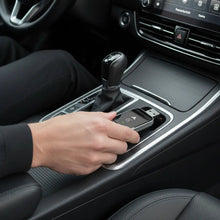
A wired-to-wireless adapter changes how an iPhone connects to an existing wired CarPlay system. It does not install a projector, add vehicle display hardware or redesign the car’s infotainment integration.
The Homniva Wireless CarPlay Adapter is intended for vehicles with existing wired CarPlay. Before buying specifically for HUD navigation, confirm support for your exact vehicle, infotainment system and app. Do not assume that all secondary-display features will be retained just because the main CarPlay screen works.
If you are still establishing the basics, start with how to check whether your car has CarPlay.
How to test your car’s HUD compatibility
You can learn more from a controlled comparison than from a broad compatibility claim. Set up each test while safely parked. If checking actual turn prompts requires driving, have a passenger observe the displays or compare after stopping; never operate settings while driving.
- Identify the display. Check whether you are looking at a factory HUD, an instrument cluster or an aftermarket accessory. Note the infotainment version and consult the vehicle manual.
- Check HUD settings. Look for navigation or guidance display options. Select only settings supported by your vehicle’s instructions.
- Establish a wired baseline. Connect your iPhone directly to the CarPlay data port using a suitable cable.
- Choose one navigation app. Start a route in that app and note what appears on the centre screen, cluster and HUD. Do not run a second route in the car’s native navigation at the same time.
- Compare the wireless connection. Repeat with the same phone, app and route using factory wireless CarPlay or your adapter. Keep other variables unchanged.
- Record the difference. If directions appear when wired but disappear when using an adapter, share that exact result with the adapter supplier, including the vehicle and infotainment details.
Apple Maps, Google Maps and Waze: test them separately
Do not assume every navigation app exposes the same information to every vehicle display. A working route on the centre screen is not proof that an app can supply the HUD’s turn arrows, distances or lane information.
| Navigation source | What to check | What not to assume |
|---|---|---|
| Apple Maps through CarPlay | Whether your car supports its guidance on the HUD | That support transfers to every other app |
| Google Maps through CarPlay | Actual behaviour with your vehicle and connection | That centre-screen maps imply HUD directions |
| Waze through CarPlay | Whether any secondary-display guidance is supported | That all alerts or lane information appear on the HUD |
| Vehicle’s built-in navigation | Its own HUD guidance settings | That native-navigation integration proves CarPlay integration |
If one app works and another does not, that difference is useful evidence. It points towards app or vehicle integration rather than proving that wireless CarPlay itself is faulty.
Troubleshooting missing HUD directions
CarPlay works, but the HUD shows only speed
Check the HUD’s permitted content settings and the vehicle’s documented navigation support. Ensure a route is active in the app you are testing. If neither wired nor wireless CarPlay shows directions, first investigate whether that feature is supported at all.
Directions appear with a cable but not with an adapter
Repeat the comparison with the same app and phone. Connect the adapter directly to the correct data port, without a hub. Record your software versions and ask the supplier about the secondary-display function for that exact system. A repeatable difference is more useful than a general report that “CarPlay is broken”.
The HUD shows directions from a different route
Cancel any active route in the car’s native navigation and start again using just one source. The HUD may be showing guidance from a separate navigation system rather than the route visible in CarPlay.
The whole wireless connection keeps dropping
That is a broader connection problem, not just a HUD issue. Establish that wired CarPlay is reliable, then follow our wireless CarPlay connection guide. Resolve the main connection before evaluating secondary-display behaviour.
Is this the same as next-generation CarPlay?
No. Passing a navigation instruction to a vehicle display is different from a broader, deeply integrated CarPlay experience across multiple screens. A normal wired-to-wireless adapter does not upgrade your vehicle to next-generation CarPlay or add its vehicle-level functions.
Our next-generation CarPlay guide explores that separate subject. For this question, keep the focus on the specific turn-by-turn information your existing vehicle supports.
What drivers in each market should check
🇺🇸 United States
Use the manual and equipment details for your US-market vehicle. A trim with a HUD does not automatically have the same phone-navigation integration as another trim or model year.
🇬🇧 United Kingdom
For a used car, verify the actual fitted infotainment and HUD package. Test the car itself rather than rely on an advert that lists both “CarPlay” and “head-up display”.
🇨🇦 Canada
Check Canadian specifications and software information. Advice for a similarly named US vehicle can be useful, but it is not a substitute for testing your own system.
🇦🇺 Australia
Use Australian-market documentation. A demonstration filmed in a European car may involve a different equipment package or software version.
🇪🇺 Europe
Across Germany, France, Italy, Spain and other European markets, optional display packages can differ. Confirm the installed system and supported navigation sources, especially when importing or buying a used vehicle.
Homniva lists adapter shipping to the United States, United Kingdom, Canada, Australia and Europe, with an estimated 7–14 business days on the product page. Review the current delivery details when ordering; delivery availability is separate from vehicle compatibility.
Frequently asked questions
Will a wireless adapter add head-up-display navigation?
Do not buy one on that assumption. Its purpose is to convert an existing wired CarPlay connection to wireless, not add a new vehicle-display capability.
If HUD directions work with wired CarPlay, will they definitely work wirelessly?
Not necessarily. That is a good baseline, but verify the particular wireless implementation or adapter with your car and app.
Why does built-in navigation show on my HUD but CarPlay does not?
The car’s native navigation may have an integration that is not available to your CarPlay app. Check the vehicle’s documentation and supported sources.
Can the digital instrument cluster show directions when the HUD cannot?
It may, depending on the vehicle. Treat the cluster and HUD as separate destinations and test both rather than assuming they mirror one another.
Should I replace a working factory wireless connection with an adapter?
Usually there is no reason to do so purely for HUD navigation. First check the existing system’s settings, app support and documented capabilities.
Can I charge my iPhone while testing wireless navigation?
Yes, using a suitable separate charging connection. See our charging and wireless CarPlay guide for practical options.
A reader-exclusive offer
Want a wireless connection for a car with confirmed wired CarPlay? View the Homniva Wireless CarPlay Adapter and use READER10 at checkout for 10% off the adapter. If HUD guidance is essential to you, confirm that specific function before ordering.
