


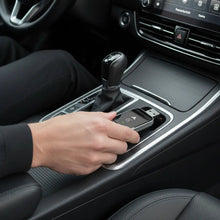
Low Power Mode is handy when your iPhone battery is running short, but does switching it on stop wireless CarPlay from connecting? Usually, Low Power Mode alone should not prevent a CarPlay session from working. Still, a particular iPhone, iOS version, car or adapter can behave differently, so it is worth testing your own setup while parked.
This guide explains what to check, how to test Low Power Mode without changing several settings at once, and what drivers in the United States, United Kingdom, Canada, Australia and Europe can keep in mind.
Quick answer: can wireless CarPlay work in Low Power Mode?
In most setups, Low Power Mode is not a CarPlay on/off switch. Wireless CarPlay still needs the iPhone’s wireless connection and the vehicle’s compatible CarPlay system or adapter. If CarPlay stops connecting only when Low Power Mode is on, treat that as a troubleshooting clue rather than proof that every iPhone will behave the same way.
| Situation | What to expect | What to do |
|---|---|---|
| CarPlay connects normally with Low Power Mode on | ✅ Your setup is working as expected | You can keep using your normal battery-saving routine. |
| CarPlay connects, but one app updates slowly | ⚠️ The app or its background activity may be the issue | Check that app’s connection and permissions while parked. |
| CarPlay will not start only in Low Power Mode | ⚠️ Behaviour may vary by device, software and car | Compare one test with the mode off, then check pairing settings. |
| The iPhone battery is critically low or the phone is shutting down | ❌ A stable session is not guaranteed | Charge the phone safely before relying on navigation or calls. |
What Low Power Mode does and does not tell you
Low Power Mode is a battery-saving setting on the iPhone. It is different from Focus or Do Not Disturb, which manage notifications and interruptions. Neither the name of the setting nor the CarPlay connection alone tells you whether an app has a working internet connection, location permission or fresh background data.
Wireless CarPlay also relies on a local phone-to-car connection. Online maps, streaming and other live services may need mobile data separately. If you want the connection-versus-internet distinction, see does wireless CarPlay work without internet?
How to test Low Power Mode with wireless CarPlay
- Park somewhere safe. Do not change phone or infotainment settings while driving.
- Note your current setup. Check whether your car has factory wireless CarPlay or whether it uses a wired-to-wireless adapter.
- Start with the iPhone charged enough for a fair test. If the battery is about to run out, connect a suitable car charger before troubleshooting.
- Connect CarPlay with your usual settings. Confirm the CarPlay home screen appears and test a basic function while stationary.
- Turn Low Power Mode on or off for one comparison. Change only this setting, then wait for the system to reconnect.
- Record what changed. Note whether CarPlay failed to connect, disconnected, or connected while a particular app behaved differently.
- Restore your preferred setting. If both tests work, use whichever battery setting suits your day.
If you are using an adapter, confirm that your car already launches wired Apple CarPlay through the USB port. The Homniva Wireless CarPlay Adapter converts a compatible wired connection; it cannot add CarPlay to a system that does not support it.
Low Power Mode troubleshooting
Wireless CarPlay does not connect at all
Check that the iPhone and car still recognise each other, Bluetooth and Wi-Fi are enabled, and the correct CarPlay source is selected. If you use an adapter, make sure it is connected to the USB port that supports wired CarPlay. See our guide to CarPlay with a locked iPhone for another setting that can be mistaken for a connection problem.
CarPlay connects, but the screen goes blank or drops out
Check the cable and power connection for an adapter, restart the phone and vehicle system while parked, and test with Low Power Mode both on and off. If the issue happens in either mode, it may be a pairing, USB or infotainment issue rather than a battery setting.
Navigation or music seems out of date
Check the app’s connection, permissions and available data. Low Power Mode is only one possible factor. If the iPhone has little or no signal, live map details or streaming may not refresh even when the CarPlay dashboard remains connected.
Notifications are quiet, but CarPlay is still connected
Check Focus and Do Not Disturb separately. They control interruptions, not the same thing as the CarPlay pairing itself. Our Focus Mode and Do Not Disturb guide explains that distinction.
Low Power Mode versus other iPhone settings
| Setting or condition | What it mainly concerns | First check |
|---|---|---|
| Low Power Mode | Battery-saving behaviour | Compare one connection test with it on and off. |
| Focus or Do Not Disturb | Notifications and interruptions | Check Focus settings if alerts are muted. |
| VPN | How some internet traffic is routed | Check VPN options only if online services are affected; see our VPN and wireless CarPlay guide. |
| Low mobile signal | Live online services | Test downloaded maps or music where supported. |
| Low battery or shutdown | Whether the phone can keep running | Charge the phone before depending on it for a long trip. |
What drivers should know in five markets
| Market | Practical note |
|---|---|
| 🇺🇸 United States | For a long highway journey, test your usual CarPlay setup before leaving and keep a suitable charging option available. Check adapter delivery options at checkout. |
| 🇬🇧 United Kingdom | Try the setting on a familiar commute while parked first, especially if you use live traffic updates. Check UK availability and delivery at checkout. |
| 🇨🇦 Canada | Cold-weather battery performance can make a low-charge phone less dependable. Test the connection and plan a safe charging option before a long drive; check Canadian shipping at checkout. |
| 🇦🇺 Australia | Keep the iPhone out of direct heat and test navigation before a long regional drive. Confirm current delivery options for your postcode at checkout. |
| 🇪🇺 Europe | Infotainment menus and vehicle equipment vary by country and model. Check the exact language and CarPlay options in your car, and review delivery for your destination at checkout. |
Does Low Power Mode affect iPhone battery use with CarPlay?
Wireless CarPlay uses the iPhone during a drive, and navigation, calls, streaming and screen use can all contribute to battery use. Low Power Mode may help with battery management, but it is not a substitute for a charger on a long journey. For the battery question itself, read does wireless CarPlay drain your iPhone battery?
For a model-specific compatibility check, see our Renault Austral wireless CarPlay guide or the Renault Megane setup guide.
Frequently asked questions
Will Low Power Mode turn wireless CarPlay off?
It should not automatically be treated as a CarPlay off switch. Most setups should be tested directly, because the result can depend on the iPhone, software, car and adapter.
Should I turn Low Power Mode off before every drive?
Not necessarily. If your own setup works with it enabled, there is no need to change your routine just for CarPlay. If you see a repeatable connection problem, compare one test with the setting off.
Can CarPlay stay connected while maps or music need internet?
Yes, the CarPlay dashboard and an app’s live online content are separate things. A weak mobile connection can affect online features without proving that the local CarPlay link has failed.
Is Low Power Mode the same as Do Not Disturb?
No. Low Power Mode relates to battery saving. Focus and Do Not Disturb manage interruptions and notifications.
Will an adapter fix CarPlay problems caused by Low Power Mode?
An adapter is not a guaranteed fix for an iPhone setting. First confirm that wired CarPlay works in your car, then test the connection with the setting on and off.
A reader offer from Homniva
Want to lose the cable on compatible wired-CarPlay trips? Use code READER10 for 10% off the Homniva Wireless CarPlay Adapter. See the adapter here and enter the code at checkout. Check checkout for current availability and delivery to your country.
