


How to Connect Wireless CarPlay for the First Time (Step-by-Step)
If you've just received your wireless CarPlay adapter and you're not sure where to start — this guide walks you through the entire first-time setup in under 60 seconds.
You only do this once. After the initial pairing, your car connects to wireless CarPlay automatically every time you start the engine.
What You Need Before You Start
- A car with factory wired CarPlay (any make or model)
- The Homniva Wireless CarPlay Adapter
- An iPhone running iOS 10 or later
- Bluetooth and Wi-Fi enabled on your iPhone
Not sure if your car has wired CarPlay? Plug your iPhone into your car's USB port with a Lightning or USB-C cable. If CarPlay launches on your screen, you're compatible.
Step-by-Step: First-Time Wireless CarPlay Setup
Step 1 — Plug In the Adapter
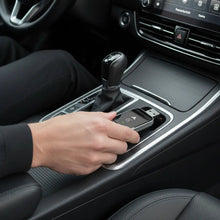
Insert the Homniva adapter into your car's USB-A port (usually in the center console or dashboard). The adapter powers on automatically when you start the car — no buttons, no switches.
Step 2 — Connect to the Adapter's Wi-Fi Network
On your iPhone, go to Settings → Wi-Fi. You'll see a new network appear — it will be named something like "Homniva-XXXX" or similar. Tap it to connect.
Step 3 — Pair via Bluetooth
Go to Settings → Bluetooth on your iPhone. The adapter will appear as a new device. Tap it to pair. You may see a pairing confirmation prompt — tap Pair.
Step 4 — CarPlay Launches Automatically
Within a few seconds, CarPlay will launch on your car's screen. You'll see the familiar CarPlay home screen with Maps, Phone, Music, and your other apps.
That's it. First-time setup is complete.
From the Second Drive Onwards
You never need to repeat those steps. From now on:
- Start your car
- The adapter powers on and broadcasts its signal
- Your iPhone detects it via Bluetooth and connects automatically
- CarPlay launches on your screen within 7–10 seconds
No cable. No tapping. No setup. Just get in and drive.
Troubleshooting: If CarPlay Doesn't Connect
CarPlay isn't launching after setup:
- Make sure CarPlay is enabled on your iPhone: Settings → General → CarPlay — your car should appear here
- Check that Bluetooth and Wi-Fi are both turned on
- Try restarting your iPhone and starting the car again
The adapter network isn't showing in Wi-Fi:
- Make sure the adapter is fully inserted into the USB port
- Wait 30 seconds after starting the car — the adapter takes a moment to boot
- Try a different USB port if your car has more than one
CarPlay connects but then drops:
- This is usually a Wi-Fi interference issue — move your phone closer to the center console
- Forget the adapter's network on your iPhone and reconnect from scratch
Common Questions About First-Time Setup
Q: Do I need to install an app?
No. The Homniva adapter is fully plug-and-play. No app download, no account, no subscription required.
Q: Does it work with all iPhones?
Yes — any iPhone running iOS 10 or later. In practice, any iPhone from the last 8 years will work perfectly.
Q: Can I use it with multiple iPhones?
Yes — you can pair multiple iPhones to the adapter. Whichever phone is in the car will connect automatically.
Q: Will it drain my iPhone battery?
Wireless CarPlay uses a small amount of battery — similar to any Bluetooth/Wi-Fi connection. Read our full breakdown: Does Wireless CarPlay Drain iPhone Battery?
Q: Does it work while my phone is charging?
Yes — wireless CarPlay works perfectly while your phone charges via a separate port or wireless pad. See: Does Wireless CarPlay Work While Charging?
Which Cars Is This Compatible With?
The Homniva adapter works with any car that has factory wired CarPlay — including:
- Honda Civic
- Volkswagen Golf
- BMW 3 Series
- Mazda CX-5
- Mercedes C-Class
- Audi A4
- And 800+ other models with factory CarPlay
Check our full compatibility guide: homniva.com/pages/wireless-carplay-guide
Ready to Go Wireless?
Setup takes 60 seconds. No tools, no coding, no dealer visit.
👉 Shop the Homniva Wireless CarPlay Adapter
Ships to the United States 🇺🇸 | United Kingdom 🇬🇧 | Canada 🇨🇦 | Australia 🇦🇺
