


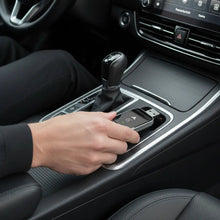
The Kamiq makes a sensible everyday car. A phone cable trailing across the console is rather less sensible, especially when you make several short trips a day. Going wireless can tidy up that routine, but there is one check worth doing before buying an adapter: does your particular Kamiq already run Apple CarPlay through USB?
That matters more than the registration year, screen size or badge on the boot. This guide walks you through the check, explains when an adapter is useful and gives you a straightforward setup plan. It is written for UK and European owners first, with guidance for Australia, the United States and Canada as well.
Can you add wireless CarPlay to a Škoda Kamiq?
A wired-to-wireless CarPlay adapter is intended for a car with working wired Apple CarPlay. It does not install CarPlay in an infotainment system that lacks it, unlock an inactive feature or turn a charging-only USB socket into a data connection.
The Homniva Wireless CarPlay Adapter is designed to convert an existing wired CarPlay connection to wireless. Start by testing your own vehicle rather than relying on a broad model list. If your Kamiq already connects to CarPlay wirelessly without an accessory, you may not need an adapter at all.
Compatibility at a glance
| Your Kamiq’s current setup | Adapter suitability | What to do next |
|---|---|---|
| CarPlay opens when an iPhone is connected to the correct USB data port | ✅ Meets the essential wired-CarPlay requirement | Confirm the adapter’s connector and support for your exact system before ordering |
| Factory wireless CarPlay already works | ⚠️ Usually unnecessary | Try the built-in wireless connection first |
| SmartLink is shown but CarPlay does not open | ⚠️ Not yet confirmed | Check activation, cable, phone settings and vehicle documentation |
| USB charges the phone but does not launch CarPlay | ⚠️ A charging connection is not proof of compatibility | Try the designated data port and a known-working data cable |
| No wired Apple CarPlay capability | ❌ A wired-to-wireless adapter cannot add it | Discuss supported infotainment options with a qualified installer or dealer |
Why the year and trim are not enough
Two cars advertised as a Kamiq can have different infotainment equipment, optional features or market specifications. A used car may also have replacement hardware. This is why a promise that every car from a particular year works would be less useful than a five-minute check in your driveway.
Look for the infotainment system’s SmartLink or smartphone-integration menu, then consult the manual for that particular car. A menu label alone is not the final test: you want to see CarPlay actually running with your iPhone connected by cable.
If you are still unsure what to look for, our guide to checking whether your car has CarPlay is a useful starting point.
Check wired CarPlay before you buy
- Park safely and switch on the infotainment system. Carry out all pairing and testing while stationary.
- Use a known-working iPhone data cable. Some cables supply power without carrying the data needed for CarPlay.
- Connect to the USB port identified for smartphone integration in your vehicle manual. Do not assume every front or rear socket has the same function.
- Unlock the iPhone and accept any CarPlay prompts on the phone and vehicle screen.
- Open CarPlay and test a supported navigation or audio app. If it works through the cable, you have established the key prerequisite.
- Note the socket type and your infotainment details. Check these against the adapter requirements before ordering.
If wired CarPlay does not work reliably, fix that first. Adding a wireless adapter is not a dependable way to bypass a faulty cable connection, inactive feature or unsupported head unit.
How to set up wireless CarPlay on your Kamiq
Once compatibility is confirmed, keep the first pairing simple: one phone, a direct connection and no USB hub. Exact device names and prompts can vary, so follow the instructions supplied with your adapter.
- Disconnect the iPhone cable from the car’s CarPlay data port.
- Connect the adapter directly to that port, using only a suitable connector accessory if one is required by the supplied instructions.
- Enable Bluetooth and Wi-Fi on your iPhone.
- Wait for the adapter’s pairing information, then select the device named in its instructions from your phone’s Bluetooth settings.
- Accept the pairing and CarPlay requests. Keep Wi-Fi enabled for the wireless connection; do not guess passwords or manually join an unfamiliar network unless instructed.
- When CarPlay opens, test navigation audio, music and a hands-free call while parked.
- Restart the car normally and check reconnection before relying on the setup for your commute.
Automatic connection is the aim, not a guaranteed number of seconds for every vehicle. Startup behaviour can depend on the head unit, phone and adapter firmware.
Wired, factory wireless or an adapter?
| Option | When it makes sense | Important limitation |
|---|---|---|
| Wired CarPlay | ✅ Your current connection is reliable and you prefer cable charging | The phone must be connected for each journey |
| Factory wireless CarPlay | ✅ Your Kamiq already supports it | Availability depends on the actual installed system |
| Wired-to-wireless adapter | ✅ You have wired CarPlay and want a cable-free phone connection | It relies on existing wired CarPlay and does not charge the phone wirelessly |
Troubleshooting common Kamiq setup problems
The adapter powers on, but CarPlay does not appear
Return to the wired test using the same socket. Power alone does not establish a USB data connection. Remove hubs or splitters, check that the plug is properly seated and confirm that smartphone integration is selected on the car screen.
First pairing works, but the next journey does not reconnect
Check that Wi-Fi and Bluetooth remain enabled. If several paired phones are nearby, test with only your intended phone present. Follow the adapter instructions for clearing stale pairings and pairing again rather than changing unrelated vehicle settings.
Our wireless CarPlay connection troubleshooting guide covers the wider checks if the problem continues.
The USB connector does not match
Check the physical socket before buying. USB-A and USB-C are connector shapes, not guarantees that a socket supports CarPlay. Any connector accessory must support data and suit the adapter; a charge-only converter is not enough.
Your phone needs charging on a longer trip
The adapter occupies the CarPlay port. Charge the iPhone separately using a suitable charging port, a 12V charger or compatible wireless charging equipment. Our guide to charging while using wireless CarPlay explains the options. Keep the phone out of direct sun and follow its temperature warnings.
Kamiq guidance by market
🇬🇧 United Kingdom
Use the equipment list and manual for your UK car, particularly when buying used. A trim name or a dealer advert is a starting point, not proof of working wired CarPlay. Test the actual vehicle before ordering.
🇪🇺 Europe
Local specifications and optional infotainment equipment can differ between countries. Owners in Germany, France, Spain, Italy and elsewhere should check their own system rather than apply a UK equipment assumption to every European Kamiq.
🇦🇺 Australia
Check Australian-market documentation and your vehicle’s USB arrangement. Imported advice can describe a different infotainment package, even when the model name is the same.
🇺🇸 United States
If you are researching a Kamiq abroad or have access to an imported example, use the specification of that vehicle’s original market. Do not substitute equipment assumptions from a similarly sized US-market SUV.
🇨🇦 Canada
The same applies to Canadian readers considering a vehicle overseas or an imported car: compatibility follows its installed infotainment system, not the country where the adapter is delivered.
Homniva lists shipping to the United States, United Kingdom, Canada, Australia and Europe, with an estimated 7–14 business days on the product page. Check the current delivery information and destination availability when ordering.
Related Škoda guides
Comparing family cars or helping another driver? Read our Škoda Karoq guide, Octavia guide and Superb compatibility and setup guide. Always carry out the wired test on the individual car rather than transfer compatibility from one Škoda to another.
Frequently asked questions
Does every Škoda Kamiq support a wireless CarPlay adapter?
Do not assume so. Working wired Apple CarPlay is the essential starting requirement. Confirm the exact infotainment setup and adapter requirements too.
Can an adapter activate SmartLink?
A wired-to-wireless adapter is not an activation tool. Resolve any activation requirement through the appropriate vehicle support channel before considering an adapter.
Do I need an adapter if factory wireless CarPlay works?
Usually not. Try the car’s built-in connection first; an extra device may add complexity without solving a problem.
Can I charge my phone at the same time?
Yes, with a separate suitable charging connection. The wireless CarPlay link does not itself charge the iPhone.
Will the adapter add extra dashboard features?
Do not expect it to add vehicle features, extra displays or new infotainment capabilities. Its role is to change the connection to an existing wired CarPlay system.
A reader-exclusive offer
Confirmed wired CarPlay in your Kamiq? Explore the Homniva Wireless CarPlay Adapter and use READER10 at checkout for 10% off the adapter. Check compatibility first, then enjoy a tidier daily drive.
