


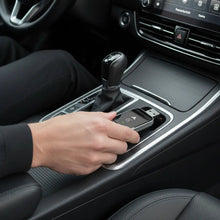
Transform Your Driving Experience with Wireless CarPlay
Tired of tangled cables every time you get in your car? A wireless CarPlay adapter is the ultimate upgrade for your vehicle's infotainment system. In this comprehensive guide, we'll walk you through everything you need to know about wireless CarPlay adapters in 2026.
What is a Wireless CarPlay Adapter?
A wireless CarPlay adapter converts your factory wired CarPlay system into a wireless one. Simply plug the adapter into your car's USB port once, and your iPhone will automatically connect via Bluetooth and WiFi every time you start your vehicle—no cables required.
Step-by-Step Setup Guide
1. Initial Connection
- Plug the wireless CarPlay adapter into your car's USB port (the same one you used for wired CarPlay)
- Turn on your car's ignition
- Wait 10-15 seconds for the adapter to boot up
2. Pairing Your iPhone
- On your iPhone, go to Settings > Bluetooth
- Look for your adapter's name (usually "AutoKit" or similar)
- Tap to connect
- Accept the CarPlay connection prompt on your car's display
3. Automatic Connection
After the initial setup, your iPhone will automatically connect whenever you start your car. The entire process takes just 5-8 seconds!
Benefits of Going Wireless
- No More Cable Clutter: Keep your car interior clean and organized
- Instant Connection: Automatic pairing as soon as you start driving
- Charge Wirelessly: Use a wireless charging pad while using CarPlay
- Universal Compatibility: Works with iPhone 6 and newer models
- Preserve Your Phone Port: Reduce wear and tear on your iPhone's charging port
Compatibility Requirements
To use a wireless CarPlay adapter, you need:
- A car with factory wired CarPlay support (2016 or newer models)
- iPhone 6 or later running iOS 10 or higher
- A USB-A or USB-C port (depending on your adapter model)
Troubleshooting Common Issues
Connection Drops
If your connection drops occasionally, try moving your phone closer to the adapter or removing any thick phone cases that might interfere with the signal.
Slow Connection Time
First-time connections may take 15-20 seconds. Subsequent connections should be much faster (5-8 seconds). If not, try forgetting the Bluetooth connection and re-pairing.
Why Choose Homniva Wireless CarPlay Adapter?
The Homniva wireless CarPlay adapter offers premium build quality, ultra-fast connection times, and universal compatibility with all CarPlay-enabled vehicles. With our 30-day money-back guarantee, you can upgrade your driving experience risk-free.
Final Thoughts
Upgrading to wireless CarPlay is one of the best investments you can make for your daily commute. The convenience of automatic connection and cable-free operation transforms your driving experience. Ready to go wireless? Shop our wireless CarPlay adapter today.
