


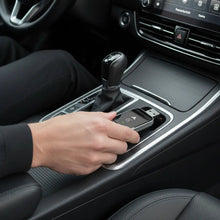
Your music is at a comfortable level, then Siri answers as though she is addressing the entire street. Or the opposite happens: the song sounds fine, but you can barely hear the reply. It is tempting to blame the wireless adapter straight away. Before doing that, check which sound your car’s volume control is actually adjusting.
The useful distinction is between music volume, Siri’s spoken replies, navigation instructions and call audio. Your infotainment system may treat these differently. This guide focuses on balancing those sounds, rather than the broader question of whether Siri works with wireless CarPlay.
Can you adjust Siri’s volume separately from music?
Often, yes, but the available controls depend on your vehicle and head unit. On many systems, adjusting the vehicle’s volume control while Siri is actually speaking changes the voice level rather than the music level. Other systems provide a separate voice or guidance setting, or group several spoken sources together.
Try the active-speech method while safely parked, then test music again. Do not assume every car has an independent Siri slider, or that the same setting also controls navigation and calls. The handbook for your fitted infotainment system is the best reference for its audio controls.
Which sound are you trying to change?
| Sound | Useful first test | What to avoid assuming |
|---|---|---|
| Siri’s spoken reply | ✅ Adjust the car’s volume while Siri is speaking | That turning the knob after the reply ends will still affect Siri |
| Music or a podcast | ✅ Adjust while that audio is playing | That the media level sets every spoken sound |
| Navigation guidance | ⚠️ Check the navigation app and vehicle guidance controls | That all navigation voices share Siri’s setting |
| Phone-call audio | ⚠️ Test the level during a call while parked | That calls use the music level |
| No voice audio at all | ⚠️ Check mute, audio routing and a direct wired connection | That raising music volume will fix missing speech |
| A system with no separate voice control | ❌ Independent adjustment may not be available | That an adapter can add a missing head-unit setting |
Step-by-step: balance Siri and music while parked
- Start with a moderate music level. Use a familiar track or podcast, not something with an unusually quiet recording. Keep the initial volume low enough to avoid a startling reply.
- Activate Siri using your supported control. Use the method that already works in your car. Ask a simple question that produces a spoken answer rather than only an on-screen result.
- Adjust the vehicle’s volume while the reply is audible. Make a small change. Watch for a voice-related volume indicator if your system provides one.
- Test another spoken reply. Check that Siri is comfortable to hear. Repeat if the first answer ended before you could adjust it.
- Return to music. Confirm whether its level stayed where you wanted it. If it changed too, your system may share the control or you may have adjusted after the spoken reply finished.
- Test navigation separately. Check the navigation app’s current audio settings and the vehicle handbook. Do not assume a change to Siri automatically changes every guidance prompt.
- Check a later session. Reconnect and test again. Whether the setting is retained depends on the equipment; do not assume every vehicle stores separate levels for each phone.
Make these adjustments before a journey. A voice that is technically audible but distracting is not a useful result. Aim for clear speech at a sensible level, not maximum loudness.
Why turning the knob sometimes changes the wrong thing
Timing matters. If Siri has finished speaking and music has resumed, the control may already be adjusting media again. A short reply can make this surprisingly easy to miss. Try another response and adjust during the spoken portion, not afterwards.
Some head units show which audio category is being changed; others do not. If the result remains unclear, stop experimenting and check the manual. Menu names such as voice, guidance or announcements are examples to look for, not guaranteed settings in every car.
Siri volume is not the same as audio quality
A quiet voice is different from crackling, stuttering or missing audio. Increasing the volume can make distortion more noticeable without solving the cause. Compare the same spoken task through a direct wired CarPlay connection before treating the wireless link as responsible.
A Homniva Wireless CarPlay Adapter is intended to change a compatible wired connection into a wireless one. It is not a voice-volume booster and does not promise to unlock independent audio controls that your head unit lacks. You do not need to buy an adapter simply to try adjusting Siri’s level.
Troubleshooting
Siri is still too quiet
Repeat the adjustment during a spoken reply, check whether a voice category appears and inspect the vehicle’s audio settings. Test while parked in a quiet environment before deciding that the system needs an unusually high level.
Music changes instead of Siri
The reply may have ended, or the system may use a shared volume control. Repeat once with careful timing, then consult the handbook. Do not keep raising the music volume in the hope of changing an independent voice channel.
Navigation remains too loud
Test the app you actually use. Navigation guidance and Siri may have different controls or may be grouped by the vehicle. A setting that works in one app is not evidence that every navigation app behaves identically.
Voice audio disappears only when connected wirelessly
Compare a direct cable connection using the same iPhone and task. If wired speech works but wireless speech does not, review the adapter’s documented troubleshooting and contact support with the vehicle, head unit and phone details. If wired speech is also missing, investigate the underlying CarPlay or vehicle audio setup first.
The voice button behaves unexpectedly
Check how your vehicle distinguishes a short press from a press-and-hold. The relevant action can vary. Our steering-wheel-controls guide covers what to test without assuming every button works alike.
What to check in each market
🇺🇸 United States
Use the manual for your US-market head unit and its actual software version. A volume-setting demonstration from another market may show a different menu, even for a familiar model name.
🇬🇧 United Kingdom
Check the controls in your UK vehicle and set a comfortable spoken level while parked. Separate the practical volume test from changing Siri’s voice or accent; those are different preferences.
🇨🇦 Canada
Use the documentation for your fitted system and test in the language you normally use. If two drivers share the car, check their iPhones separately rather than assuming a single stored setting covers both.
🇦🇺 Australia
Check the local vehicle specification and your chosen navigation app. Adjust at a standstill, then leave the settings alone during the journey rather than chasing each change in road noise.
🇪🇺 Europe
Across France, Germany, Spain, Italy and other European markets, audio menu labels and supported languages can differ. Follow the manual for the installed system, especially in an imported vehicle.
Homniva’s product page lists shipping to the United States, United Kingdom, Canada, Australia and Europe, with estimated delivery of 7–14 business days. Check current delivery details before ordering. Shipping availability does not establish which volume controls your car provides.
Frequently asked questions
Is there one universal Siri-volume setting for every CarPlay car?
No universal head-unit setting should be assumed. Try adjusting during speech and check the controls documented for your system.
Should I use the iPhone’s volume buttons?
Start with the vehicle’s audio controls and handbook while connected to CarPlay. Do not assume the phone’s buttons adjust the same audio category as the car’s controls.
Will changing Siri’s voice make it louder?
Changing the voice is not a substitute for checking the playback level. Test volume separately so you can identify what actually changes.
Does a wireless adapter add a separate Siri slider?
Do not expect it to. Independent voice controls are a capability to verify in your vehicle’s system, not a reason to buy a wired-to-wireless adapter.
Will my volume setting affect another driver’s phone?
That depends on how your head unit stores audio settings. Check both phones separately. See our two-phone CarPlay guide for connection considerations.
What should I do if CarPlay itself will not connect?
Resolve the connection before testing voice levels. Our first-time setup guide provides the starting checks.
A reader-exclusive offer
Already have compatible wired CarPlay and want to investigate going wireless? View the Homniva Wireless CarPlay Adapter and use READER10 at checkout for 10% off the adapter. Confirm compatibility first. The adapter changes the connection, not the volume controls your vehicle supports.
