


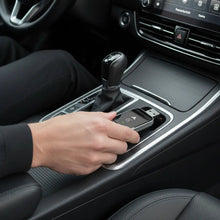
Getting into your Equinox for the morning commute should not involve rummaging around for a cable. Wireless CarPlay can make that routine simpler, but there is an important question to answer before ordering an adapter: does your particular Chevrolet already offer wireless CarPlay, support it only by cable, or lack the required smartphone projection altogether?
This guide is written with US Equinox owners in mind. It explains how to check the installed system, establish a working connection and decide whether an adapter serves a purpose. It does not treat every model year, trim or Equinox-branded vehicle as interchangeable.
Can you add wireless CarPlay to a Chevrolet Equinox?
If your installed system already runs CarPlay through a USB data connection, a compatible wired-to-wireless adapter is an option to investigate. Confirm your exact vehicle and head unit with the supplier before buying. If native wireless CarPlay already works, try that first: there may be no need for an extra device.
The Homniva Wireless CarPlay Adapter is designed to change a compatible wired CarPlay connection into a wireless one. It cannot supply a missing CarPlay platform simply because the dashboard has a large screen or a USB socket.
Equinox compatibility checklist
| What your vehicle supports | Assessment | Recommended action |
|---|---|---|
| Working CarPlay through the USB data port | ✅ An adapter is an option to investigate | Confirm the exact vehicle and fitted infotainment system with the supplier |
| Working native wireless CarPlay | ✅ A separate adapter may be unnecessary | Use Chevrolet’s built-in pairing procedure first |
| Bluetooth music and calls, but no confirmed CarPlay | ⚠️ CarPlay support is not established | Check the handbook, equipment details and direct USB connection |
| A USB port that only charges the phone | ⚠️ Power alone is not evidence of smartphone projection | Identify the USB data port specified for your vehicle |
| No CarPlay support in the installed system | ❌ A wired-to-wireless CarPlay adapter is not a solution | Investigate the system’s actual supported features instead |
| Equinox EV or an aftermarket head unit | ⚠️ Treat as a separate compatibility check | Do not transfer assumptions from a petrol Equinox or its original stereo |
Check the actual equipment, not just the year
A model-year search is a useful starting point, but it should not be the final buying decision. Check your owner’s manual and the equipment fitted to your vehicle. A second-hand Equinox may also have modifications that make the original specification less useful.
Chevrolet’s official CarPlay connection guidance explains that wireless connection is available only on selected vehicles. It also identifies a CarPlay or Projection icon as a useful compatibility clue. The practical confirmation is to establish a working connection using the procedure for your vehicle.
Do not confuse Equinox with Equinox EV
The shared name is not a compatibility guarantee. This guide does not establish CarPlay support for an Equinox EV, nor promise that an adapter can add it. Verify the EV’s own specification and handbook separately. Built-in apps or navigation are not, by themselves, proof of CarPlay support.
If you are starting from scratch, read how to check whether your car has CarPlay before buying anything.
Step-by-step: establish wired CarPlay first
- Put the vehicle in Park. Chevrolet specifies Park for the first CarPlay connection. Allow time to read the prompts safely.
- Identify the USB data port. Use the handbook for your exact vehicle. Do not assume every socket in the cabin supports the same functions.
- Connect your iPhone with a suitable data cable. Chevrolet’s guidance covers USB-A or USB-C according to the equipment. Unlock the iPhone before completing the initial setup.
- Accept the prompts. Follow the instructions on the phone and centre display to enable CarPlay.
- Open CarPlay if it does not launch automatically. Where available, select the CarPlay icon on the vehicle display.
- Check a supported app. Confirm that CarPlay actually opens and works, rather than treating phone charging as a successful test.
Chevrolet’s current guidance states that, for model-year 2024 and newer vehicles that support CarPlay, the iPhone must run iOS 14 or later for wired and wireless connections. That phone requirement is not evidence that every vehicle in those model years has CarPlay; verify vehicle support separately.
Try native wireless before buying an adapter
If your vehicle supports native wireless CarPlay, follow its own setup instructions. Chevrolet describes pairing the iPhone with the infotainment system over Bluetooth, then accepting the prompts for a wireless CarPlay session. On some supported vehicles, an initial cable connection can offer wireless use for future journeys.
Use the method documented for your exact system. A Bluetooth connection alone is not the same as a wireless CarPlay session. Our CarPlay versus Bluetooth guide explains that distinction.
Step-by-step: set up a compatible wireless adapter
- Confirm working wired CarPlay and adapter compatibility. Keep a note of the vehicle year, trim and head-unit details for the supplier.
- Connect the adapter to the proven CarPlay data port. Use the supplied instructions and keep the initial setup free of hubs or splitters.
- Enable Bluetooth and Wi-Fi on the iPhone. Select the adapter identified in its instructions, not a guessed device name.
- Complete the pairing prompts. Allow the CarPlay session to open before trying other functions.
- Test while parked. Try music, Siri, navigation audio and the controls you normally use.
- Check a later connection. Confirm that the intended phone reconnects after ending the session according to the equipment’s instructions.
For more background, see our first-time wireless CarPlay setup guide. An adapter changes the connection method; it is not a replacement for the vehicle’s underlying CarPlay support.
Troubleshooting an Equinox connection
The iPhone charges, but CarPlay does not open
Check the USB data port, cable and smartphone settings. Unlock the iPhone and review the prompts on both screens. Chevrolet recommends confirming that CarPlay is enabled on the phone and vehicle system. Resolve the direct cable connection before testing an adapter.
The CarPlay icon is greyed out
Chevrolet advises checking the connection and settings, including Wi-Fi and Bluetooth where relevant, and keeping applicable phone and vehicle software up to date. Follow the troubleshooting for your installed system rather than changing unrelated settings.
The adapter connects to the wrong phone
Test with one phone first and review the adapter’s connection-priority options. For a family car, our two-phone guide covers the practical considerations. Do not assume an adapter will always choose the driver’s preferred phone without checking.
Wireless fails, but a cable works
Compare the same iPhone and task under both connections. Review the adapter’s documented reset and pairing steps, then contact support with the exact equipment details if needed. Do not install firmware from an unverified source.
Steering-wheel controls behave unexpectedly
Check the vehicle manual for the correct button action and compare wired versus wireless behaviour. See our steering-wheel-controls guide for checks to make without promising that every control behaves identically.
Market-by-market notes
🇺🇸 United States
Use the US-market handbook and equipment details for your Equinox. Check the model year, installed system and whether native wireless CarPlay already works. For a used vehicle, inspect the actual stereo rather than relying only on the seller’s description.
🇨🇦 Canada
Check the Canadian specification and your owner’s documentation. Do not assume a US trim comparison precisely describes your equipment. Use the same direct wired test before considering an adapter.
🇬🇧 United Kingdom
For an imported Equinox, use the original-market documentation and identify the fitted head unit. A UK supplier being able to deliver an adapter does not establish compatibility with the vehicle.
🇦🇺 Australia
Use the documentation for your particular vehicle and local specification where applicable. Do not transfer US equipment assumptions solely because the model name matches.
🇪🇺 Europe
For Equinox owners in France, Germany, Spain, Italy and other European countries, check the vehicle’s original market and any infotainment modifications. Local app availability and vehicle compatibility are separate questions.
Homniva’s product page lists shipping to the United States, United Kingdom, Canada, Australia and Europe, with estimated delivery of 7–14 business days. Check current delivery details before ordering.
Frequently asked questions
Does every Chevrolet Equinox have wireless CarPlay?
Do not assume so. Check the exact vehicle and installed system. Chevrolet’s general guidance limits native wireless connection to selected vehicles.
Can I use an adapter if my Equinox already has wireless CarPlay?
Try the built-in connection first. You may have no need for an additional device.
Will a CarPlay adapter work with an Equinox EV?
Do not infer support from the Equinox name. Verify that exact EV’s features separately. A wired-to-wireless adapter cannot supply CarPlay if the installed system lacks it.
Is a charging USB port enough?
No. You need to establish the compatible data connection, not simply power to the phone.
Can I use this guide for a Chevrolet Silverado?
The basic connection checks are relevant, but verify the Silverado’s own equipment. See our Chevrolet Silverado guide for related model-specific reading.
Will an adapter add new CarPlay apps?
It changes a compatible connection, not the platform’s app support. Your phone, apps and vehicle still need to support the functions you want.
A reader-exclusive offer
Confirmed compatible wired CarPlay and ready to investigate going wireless? View the Homniva Wireless CarPlay Adapter and use READER10 at checkout for 10% off the adapter. Confirm your exact Equinox and head-unit compatibility before ordering.
