


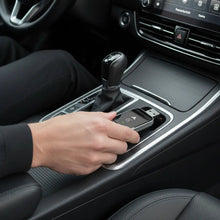
You have replaced the original stereo, your iPhone connects through a cable, and now you want to leave it in your pocket. Can a wireless CarPlay adapter finish the job?
Possibly, but not simply because the stereo is advertised as CarPlay compatible. The exact head unit, its connection method and the adapter supplier’s supported configurations matter. A vehicle compatibility list describing the original factory screen does not establish support for the replacement you have fitted.
This guide is about that aftermarket buying decision. It is not a universal compatibility claim for the Homniva adapter or any other accessory, and it does not mean an Android-based stereo is the same thing as an Android phone.
The compatibility decision at a glance
| Your installed system | What to establish | Should you order? |
|---|---|---|
| Aftermarket receiver with direct wired CarPlay | Does the adapter supplier explicitly support the exact receiver and connection? | ⚠️ Only after confirmation |
| Aftermarket receiver with working native wireless CarPlay | Can you already use the function you want without an accessory? | ❌ No adapter needed just to remove the cable |
| Android-based stereo advertising CarPlay through a particular app or dongle | What hardware and software does the stereo manufacturer require? | ⚠️ Do not substitute a generic converter without confirmation |
| Stereo with Bluetooth audio but no CarPlay support | Does the system support CarPlay at all? | ❌ A wired-to-wireless converter is not a complete retrofit |
| Unknown screen or unlabelled replacement unit | Identify the exact device before selecting accessories | ⚠️ Pause the purchase |
Why the stereo model matters more than the car badge
A factory vehicle listing describes what the manufacturer supplied, not necessarily what is in your dashboard today. Once a replacement receiver is installed, its own documentation becomes central to the decision.
“Works with my car model” and “works with my installed stereo” are different statements. Give the supplier both pieces of information. For the separate OEM question, see our guide to factory head units; do not transfer a factory-system assumption to a replacement receiver.
Wired CarPlay is a useful starting test, not a universal guarantee
A successful direct USB connection establishes that your current phone and stereo can run wired CarPlay through that arrangement. It does not independently establish that a particular adapter has been tested with it. Ask for explicit support rather than relying on a broad phrase such as “all CarPlay cars”.
Android-based stereo does not mean Android phone
The stereo’s operating system and the phone you connect are separate details. If you use an iPhone with a stereo that runs Android software, describe that complete setup to the supplier. Do not assume an accessory intended for a factory wired CarPlay port is interchangeable with a dongle specified for a head-unit application.
Our CarPlay and Android phones explainer covers the phone-side distinction. This article instead focuses on identifying the installed receiver and its accessory requirements.
Check before buying: five practical steps
1. Find the exact head-unit identity
Record its brand, full model number and software version from the documentation or settings screen. A photograph of the home screen may help support, but a screen size or marketplace listing title is not a substitute for a model number. Avoid removing dashboard trim yourself merely to look for a label; ask the installer if necessary.
2. Read the receiver’s connection instructions
Find out whether it supports direct wired CarPlay, native wireless CarPlay or a named accessory-and-app arrangement. Check which USB socket or extension is intended for the connection. A socket that charges the phone does not establish that it supports CarPlay.
3. Test the original wired arrangement
With the vehicle safely parked, use the receiver manufacturer’s documented connection method and a suitable data cable. Test navigation, music and a call. Keep the test simple: do not introduce a new hub, extension or converter at the same time. If wired CarPlay does not work reliably, diagnose that baseline first.
4. Check whether wireless is already built in
Follow the receiver’s own wireless instructions, if provided. Apple describes separate wired, wireless and combined connection options in its CarPlay setup guide. A single unsuccessful pairing attempt is not proof that the feature is absent.
5. Ask the adapter supplier a precise question
“Does this support my exact receiver model and software version, using its documented USB CarPlay connection?” is more useful than “will this work in my Volkswagen?” Include your iPhone model, software version and any existing CarPlay app or dongle. If support cannot be confirmed, do not turn uncertainty into a guaranteed purchase recommendation.
A message you can send before ordering
I have an aftermarket receiver: [brand and exact model], running [software version], installed in [vehicle and year]. My iPhone is [model and iOS version]. CarPlay currently works through [direct USB cable or named accessory/app]. Do you explicitly support this setup, which port should I use, and are any extra components required?
Fill in those details before contacting support. If you are considering the Homniva Wireless CarPlay Adapter, request that confirmation rather than treating this article as evidence that your aftermarket configuration is supported.
Setup after compatibility has been confirmed
- Keep the vehicle parked and establish the documented working wired connection.
- Follow the supported adapter’s installation instructions using the specified data connection.
- Enable the required phone settings and complete the accessory’s pairing prompts.
- Test audio, calls, navigation and the controls you actually use before driving.
- Check reconnection on a later start and retain the supplier’s instructions for troubleshooting.
Do not download an unofficial application, install unrelated firmware or enter guessed network credentials simply because another owner used them. Use instructions for the exact receiver and accessory.
Troubleshooting the common sticking points
The adapter powers up, but nothing appears
Power is not proof of a supported data connection. Confirm the documented USB port and supported receiver mode. Restore the direct wired test, then report the difference to support.
The stereo asks for a different dongle
Check the receiver manufacturer’s requirements. A named accessory request is a reason to verify the hardware path, not a reason to buy the cheapest visually similar USB device.
The original cable connection also drops out
Investigate the cable, receiver connection, phone settings and applicable official software guidance first. A wireless converter should not be sold as a guaranteed repair for an unstable underlying wired system.
Steering-wheel buttons or the microphone behave differently
Compare the direct and adapter connections while parked. Ask the installer or receiver supplier about the fitted control and microphone arrangement. Read our steering-wheel-controls guide for related checks, without assuming every installation behaves identically.
Market-by-market buying checks
🇺🇸 United States
Use the model number and documentation for the receiver actually supplied in your installation. A US vehicle model being listed as compatible does not confirm an aftermarket receiver.
🇬🇧 United Kingdom
Ask the installer to identify the exact unit and any USB extensions or separate CarPlay components. Distinguish the vehicle’s registration year from the replacement receiver’s specification.
🇨🇦 Canada
Confirm the receiver’s regional model designation rather than assuming a similar US listing is identical. Give the supplier the complete installed configuration.
🇦🇺 Australia
Check the equipment supplied by your installer and the local receiver documentation. Overseas examples can be helpful context but are not confirmation of your installation.
🇪🇺 Europe
In Germany, France, the Netherlands and elsewhere in Europe, identify the exact regional receiver model and any imported components. The country where an adapter can be delivered does not establish technical compatibility.
Homniva’s product page lists shipping to the United States, United Kingdom, Canada, Australia and Europe, with estimated delivery of 7–14 business days. Check current delivery information separately from the equipment-support decision.
Frequently asked questions
Does wired CarPlay guarantee that every wireless adapter works?
No. It is a useful starting requirement to investigate, but the supplier must confirm the particular aftermarket configuration.
Can a converter add CarPlay to any Android stereo?
Do not assume so. Identify the stereo’s documented CarPlay requirements. A generic wired-to-wireless converter should not be treated as a universal CarPlay installer.
Should I buy an adapter for a receiver with native wireless CarPlay?
Not simply to make it cable-free. Check and use the receiver’s existing wireless function first.
Can I use a USB hub to make the arrangement fit?
Do not assume that a hub is supported. Follow the receiver and accessory instructions. Our USB hub and splitter guide explains the separate issues to check.
Does the car’s original compatibility listing still apply?
It may describe a system that has been removed. Use the replacement receiver’s identity and current connection method when asking for accessory support.
Where can I find other connection guides?
Browse the Wireless CarPlay Complete Guide, then verify the exact equipment rather than relying on a broad compatibility statement.
A reader-exclusive offer
If Homniva support confirms your exact setup is compatible, view the Homniva Wireless CarPlay Adapter and use READER10 at checkout for 10% off the adapter. Do not order for an unconfirmed aftermarket configuration solely on the basis of this guide.
